Indexes and currencies
Indexes and currencies in Prophix One Cash Management enable global cash flow analysis and financial calculations across various currencies and economic indexes.
The Indices and Currencies page is used to register and manage foreign currencies and economic indices from Brazil and other countries. These parameters support financial contract calculations and currency conversions within the Cash Flow view.
Access the Indexes and currencies page
Navigate to  Registration Settings > Indexes and Currencies..
Indexes
Standard Indexes
Cash Management provides Brazilian indexes by default:
-
CDI – Interbank Deposit Certificate
-
Daily CDI (Daily Factor) – Interest rate based on interbank transactions
-
Selic – Basic interest rate of Brazil
-
IPCA – Broad National Consumer Price Index
-
INPCM – General Monthly Consumer Price Index
-
INPCAN – General Consumer Price Index (Year-to-Date)
-
INPC12 – General Consumer Price Index accumulated over 12 months
Add an Index
-
Navigate to
Registration Settings > Indexes and Currencies > Indexes. -
Click
 .
. -
Choose an Index.
-
Select a format (Monetary or Percentage).
-
Enter the Key and Name.
-
Click
 .
.
Note: System indexes update automatically when you log in for the first time each day. No manual action is required.
Delete an Index
-
On the Indexes page, select the index you want to delete.
-
Click
 .
.
Currencies
Currencies are used both for financial contract calculations and within the Cash Flow view. They enable global cash flow analysis and conversions across multiple regions.
Standard foreign currencies
The following currencies are available by default:
-
USD – United States Dollar
-
EUR – Euro
-
CAD – Canadian Dollar
Add a Currency
-
Navigate to
Registration Settings> Indexes and Currencies > Currencies. -
Click
. -
Enter the Key and Name.
-
Optionally, to set the currency as the Default in the application, select Default Currency.
-
Click
.
Note: System currencies update automatically when you log in for the first time each day. No manual action is required.
Delete a Currency
-
On the Currencies page, select the currency you want to delete.
-
Click
.
Conversion rates
Conversion Rates are used to define exchange rates between currencies. They support multicurrency calculations and ensure consistency in financial analysis across dashboards, cash flow, financial planning, and contracts.
Configure conversion rates
-
Navigate to
Registration Settings> Indexes and Currencies > Conversion Rates. -
For each Conversion Rate, define:
-
Date – Effective date of the rate
-
Origin Currency (From) – Currency being converted
-
Destination Currency (To) – Target currency
-
Value – Conversion factor
Note:-
The Origin Currency cannot be the same as the Destination Currency.
-
The combination of Date + Origin Currency + Destination Currency must be unique.
-
You may define multiple rates for the same currency pair, as long as the dates differ.
-
-
Click
.
Common use of currency rates
After setting up conversion rates:
-
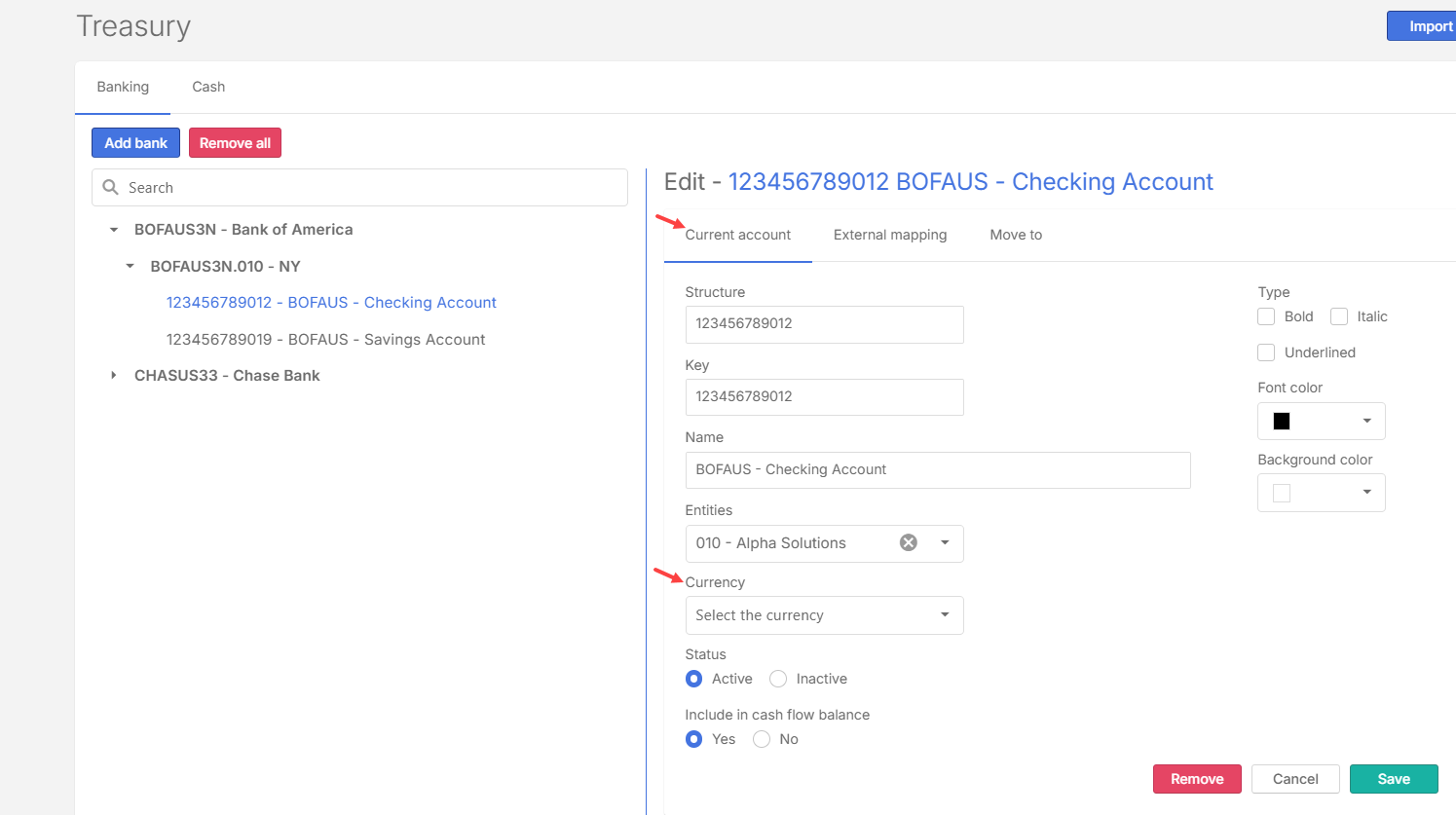
At the Treasury level, currencies can only be configured at the Account level.

-
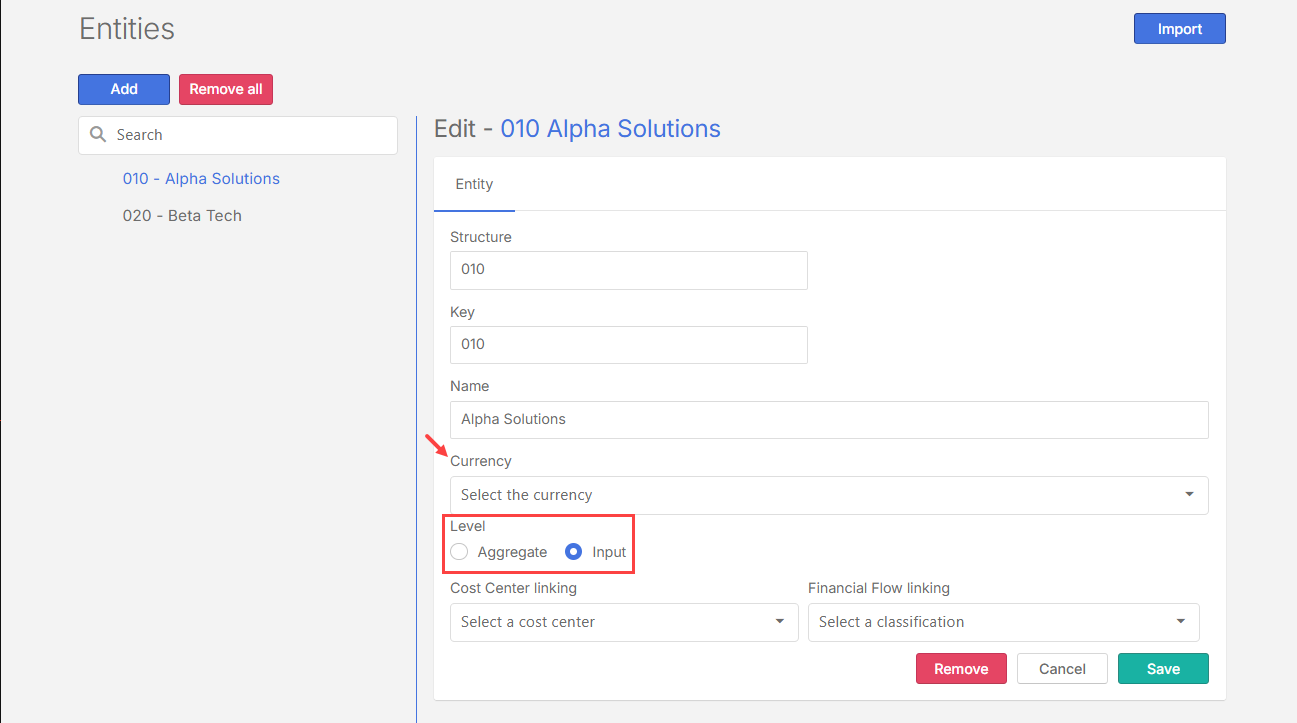
Currencies can be defined at both the Aggregate and Input levels in Entities.
 Tip:
Tip:Multicurrency follows this prioritization hierarchy:
Treasury Account > Aggregate level > Input level > Default Base Currency.
Validation
-
You can test currency conversion by switching currencies directly in filters (internally) or through external selections.
-
If a mismatch occurs, the system displays a specific error message on the process page
Using indexes and currencies
These parameters are available in:
-
Dashboards
-
Cash Flow
-
Contracts
-
Financial Planning
-
Integration > Documents
-
Integration > Balances
-
Options Settings > System Settings > Configurations