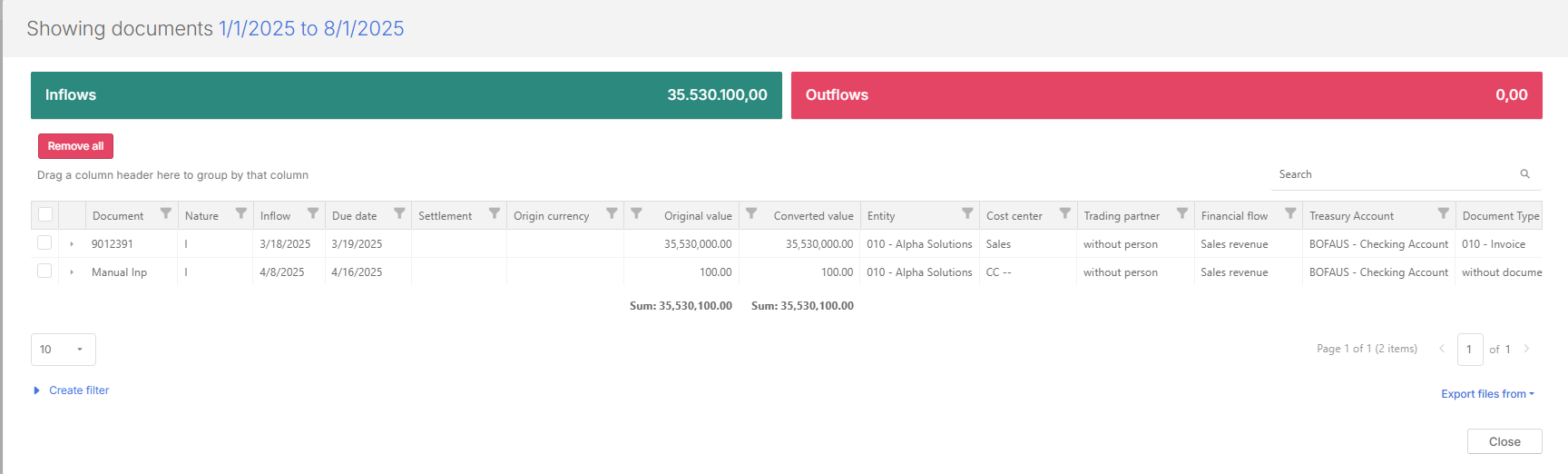
Manual projections
The Manual Projections page allows you to compare documents integrated from your ERP with those manually entered in the Projection Calendar. This enables you to:
-
Maintain typed projections (edit or delete)
-
Eliminate duplicate projections
-
Gain refined control between manually entered projections and ERP- integrated cash flow data
Access Manual projections
Navigate to  Cash flow > Manual projections.
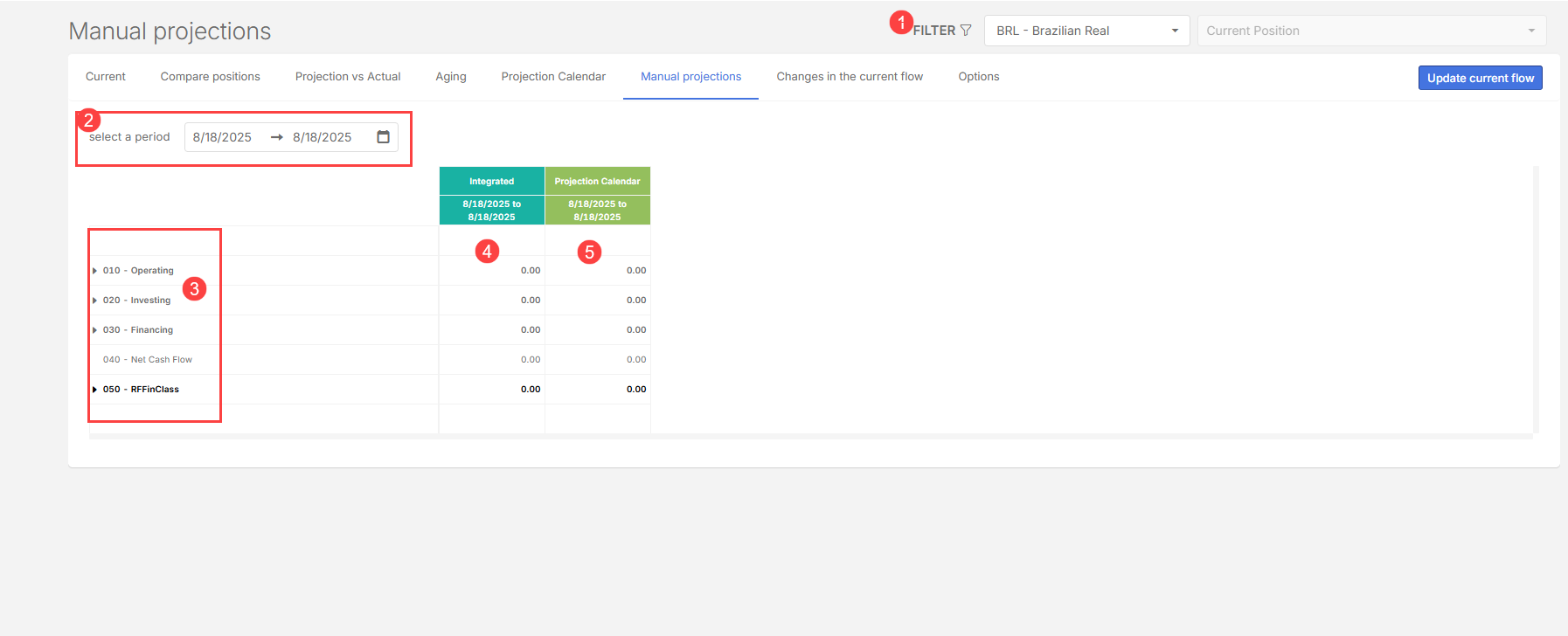
The Manual Projections page includes:
-
General system filters

-
Analysis period selection

-
Cash flow view, with:
-
Financial flow

-
Integrated data column (ERP)

-
Projection Calendar data column

-
Update current flow
This functionality brings all documents created in the Projection Calendar into the table displayed on the Current tab. It ensures that the projected information used in the cash flow reflects both calendar-generated items and documents integrated from external sources.
How it works
When projections exist in multiple sources, such as the Projection Calendar and integrated documents, the system identifies and displays any duplicated entries within the Current tab table. This allows you to quickly review and clean up redundant projections before updating the cash flow.
Manage duplicated projections
If duplicated documents appear:
-
You can remove the duplicated item directly from the Projection Calendar column.
-
After adjusting the Projection Calendar, trigger the update process so the Current tab reflects the corrected information.
Updating current flow ensures that only valid, non-duplicated projections remain in the cash flow analysis.
Edit/Delete a manual projection
You can edit manual projections or delete projections that are no longer valid or that have been replaced by integrated data.
Note: After editing or deleting a manual projection, you must redesign the projections. This ensures the system updates calculations and reflects changes correctly in the cash flow.
-
In the Projection calendar column, right-click on the financial flow you want to edit or delete.
-
Select Show documents.
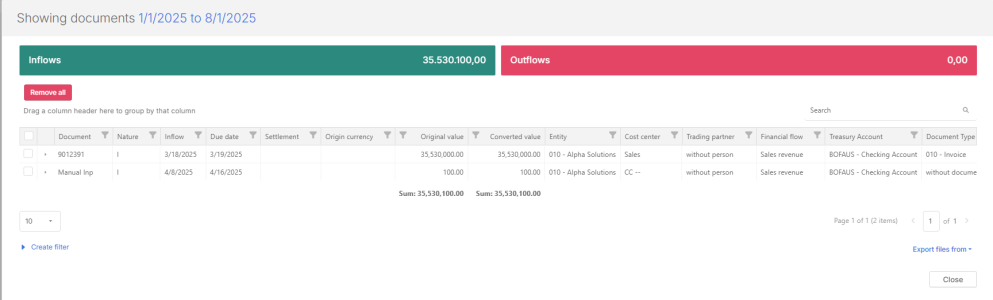
Edit a projection
-
Select a previously released projection and make the desired changes.
Delete a projection
Remove projections by doing one of the following:
- Delete one projection: Select a single row, and then click
 .
. -
Delete multiple projections: Click the checkbox in the table header to select all rows, and then click
 .
.
-