Special functions
Special functions is a parameter used to configure rules that automate adjustments during the cash flow projection process. It includes two tools:
-
Reclassify: Changes document parameters such as cost center, project, or Financial Flow.
-
Merge: Links two parameters, allowing documents to be distributed automatically to both.
In Prophix One Cash Management Special functions allows you to predefine transformation rules for documents integrated into the cash flow. These functions eliminate the need for manual updates and ensure consistent parameter adjustments.
Access the Special functions page
Navigate to  Options Settings > Special functions,
Reclassify
You can configure reclassification rules based on predefined conditions. For example, a document with an expense in a specific cost center can be automatically reclassified under a different Financial Flow.
This reclassification is applied automatically during each new integration—no manual intervention is needed.
Use Reclassify to change specific parameters in documents, such as:
-
Cost Center
-
Project
-
Person
-
Financial Flows
-
Document Type
-
Treasury
Create a reclassification
-
Go to
Options Settings > Special Functions. -
Under the Reclassify tab, click
 .
. -
In the Identification section, complete the required fields:
-
Sorting: Sets the rule execution order.
-
Reclassification name: A unique name for the reclassification rule.
-
-
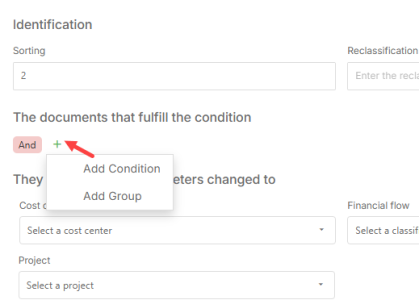
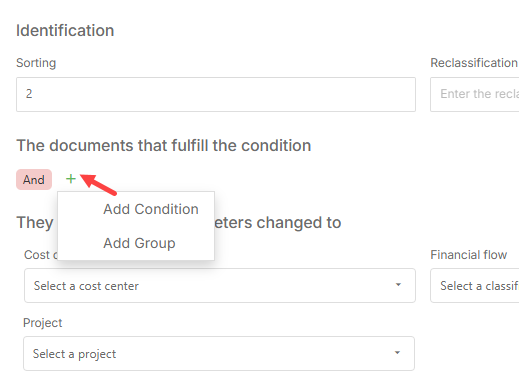
In The documents that fulfill the condition section, define conditions:
-
Choose either And or Or
-
Click the plus (+) sign and select:
-
Add Condition to create a condition and apply all conditions to the same document
-
Add Group to create a group and set multiple independent conditions
-
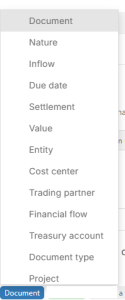
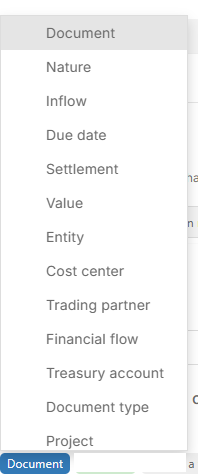
Each condition begins by selecting a document attribute (e.g., type, cost center, trading partner), followed by a logical rule, then the target value.
Document attribute
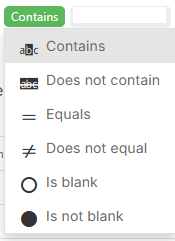
Contains (the logical rule) attribute
You can build logic using any of the following options:
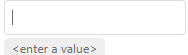
Value
Enter a target value in the field
-
-
In They will have their parameters changed to section, assign the new values to parameters such as:
-
Cost center
-
Financial Flow
-
Document type
-
Trading partner
-
Project
-
-
Click
 . Reclassification takes effect only after the next integration process.
Merge
Mergelinks two parameters to guide how integrated documents are categorized.
It functions like a FROM–TO mapping between parameters in integration logic.
Set up a merge
-
Navigate to Special Functions and open the Mergetab.
-
Click
.
-
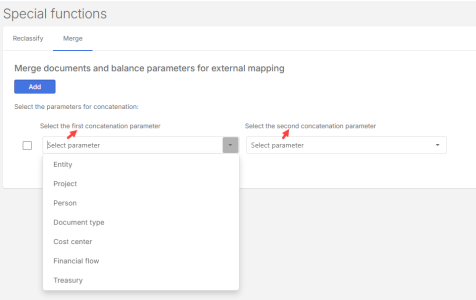
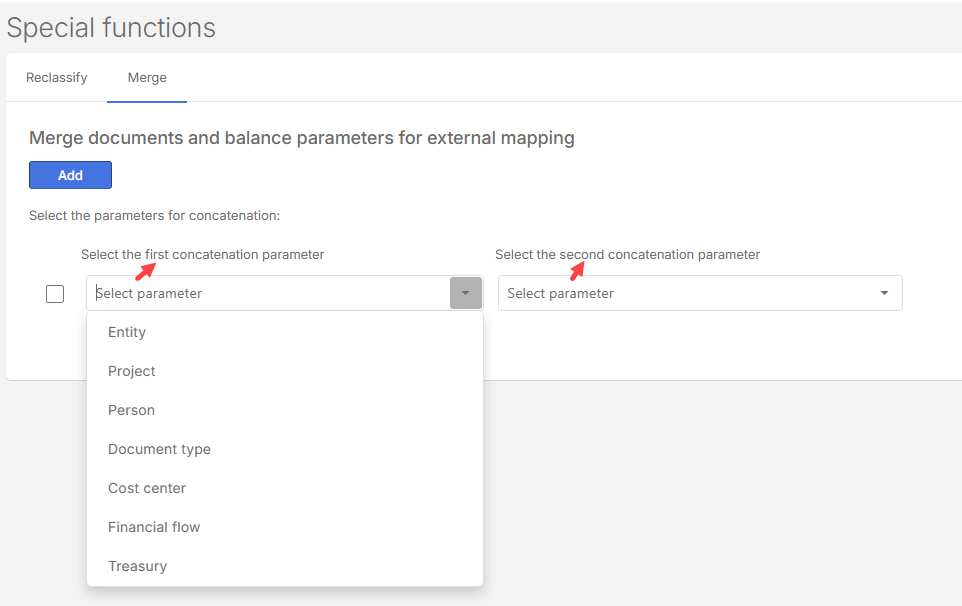
Select the first parameter (e.g., Entity, Project, Trading partner, or Document Type).
-
Select the second parameter (e.g., Cost Center, Financial Flow, or Treasury).
The combination of parameters must follow these rules:
-
If the first parameter is Entity, Project, Trading partner, or Document Type, the second parameter must be Cost Center, Financial Flow, or Treasury.
-
If the first parameter is Cost Center, Financial Flow, or Treasury, the second parameter must be Entity, Project, Trading partner, or Document Type.
-
-
After selecting parameters, review the nomenclature shown in parentheses.
-
Use this label in the appropriate column of your integration template.
-
The first parameter must be inserted in the integration file first.
-
-
Click
.
Using special functions
-
Reclassification: Automatically change Financial Flows or other attributes of a document based on conditions.
-
Concatenate: Define associations between two parameters (e.g., Entity and Treasury).
-
Integration: Applied during general-mode integration processes.