Using Filters
Filters in Prophix One Cash Management allow users to customize the data displayed on the page by selecting specific parameters relevant to their analysis. This tool enhances precision and efficiency when viewing cash flow and related data.

Each user can apply their own filters, which do not affect other users’ views. This personalized setup ensures tailored data views without affecting other users.
Filter options
Filter options include system settings and adjustment parameters.
System settings
Clicking on a page where it appears opens the Filtering page.
The first filter, for the most part, are the System Settings. These settings allow the user to adjust how information appears, based on system-related preferences (in the right-side panel).
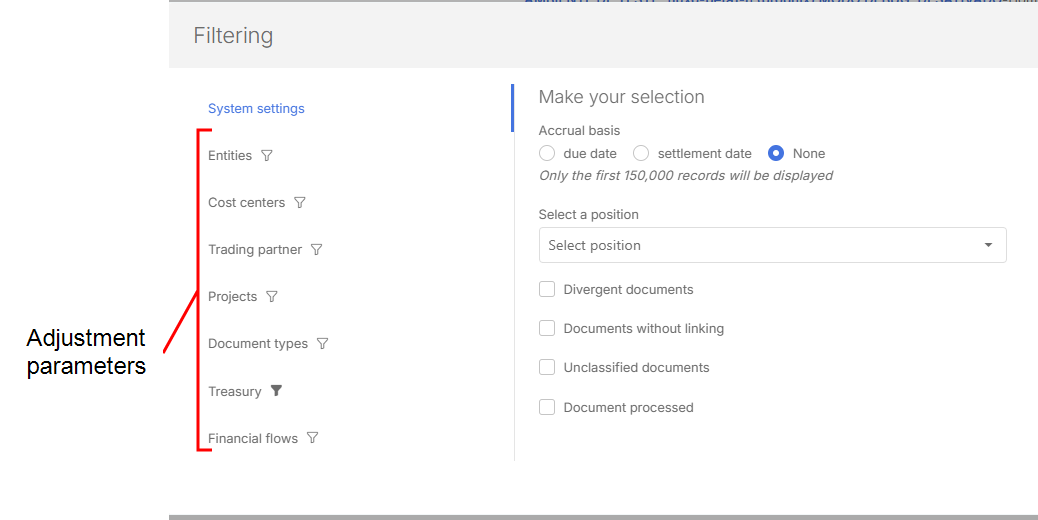
Adjustment parameters
Other filters that allow the user to narrow data by organizational or operational categories include:
- Entities: View data for a specific entity, such as a branch or division
-
Cost Centers: Analyze cash flow by department, project, or business entity.
-
Trading partners: Filter transactions by trading partners (customer, supplier, or both). Includes options for unclassified records or those without a defined trading partner.
-
Projects: Show data for a specific project. Users can filter by group, type, prioritization, or exclude projects.
-
Document types: Focus on specific transaction types (e.g., invoices, receipts, or money orders)
-
Treasury: Display only treasury-related transactions (e.g., bank movements or cash balances). Filters can be refined by bank, branch, or account.
Customize filters
Another filtering option, allows users to save a set of predefined parameters for recurring use, improving speed and consistency during analysis.
-
In the Filtering page, select a parameter — Entities, Projects, Cost centers, etc.
-
Choose from the options displayed for that parameter.
-
Click
 and enter a descriptive Name.
 -
Click
 . The filter appears as a reusable option on the main page.